



Linked vs offline contacts
PayMeLater has two kinds of contact. Here is what each one does, how to tell which one you have, and when to choose each.
Updated
Every person on your Contacts tab is a ledger: what they owe you, what you owe them, and every entry in between. There are two kinds of contact, and the difference is one thing: whether PayMeLater knows their phone number.
Linked contacts
A linked contact comes from your phone's address book, so PayMeLater has their number. The number is the link. When that person signs in to PayMeLater with the same number, you are matched automatically and the ledger between you becomes shared: you both see the same entries from your own side, and each of you is notified when the other adds, edits or deletes something.
Until they join, nothing changes for you. The contact works exactly like any other, and the link simply waits. There is no limit on linked contacts.
Offline contacts
An offline contact is a name you typed. It has no phone number and can never be matched to another PayMeLater user, so the ledger lives in your account only. It is the right choice for a shop, a landlord, a group kitty, or anyone who will never use the app. Offline contacts are also the only kind available in anonymous mode.
How to tell which kind you have
Open the contact, tap the gear in the top right, and scroll to the very bottom of Contact Settings. The footer tells you everything: which device contact it is linked to, the exact phone number, and whether that person is already a PayMeLater user.
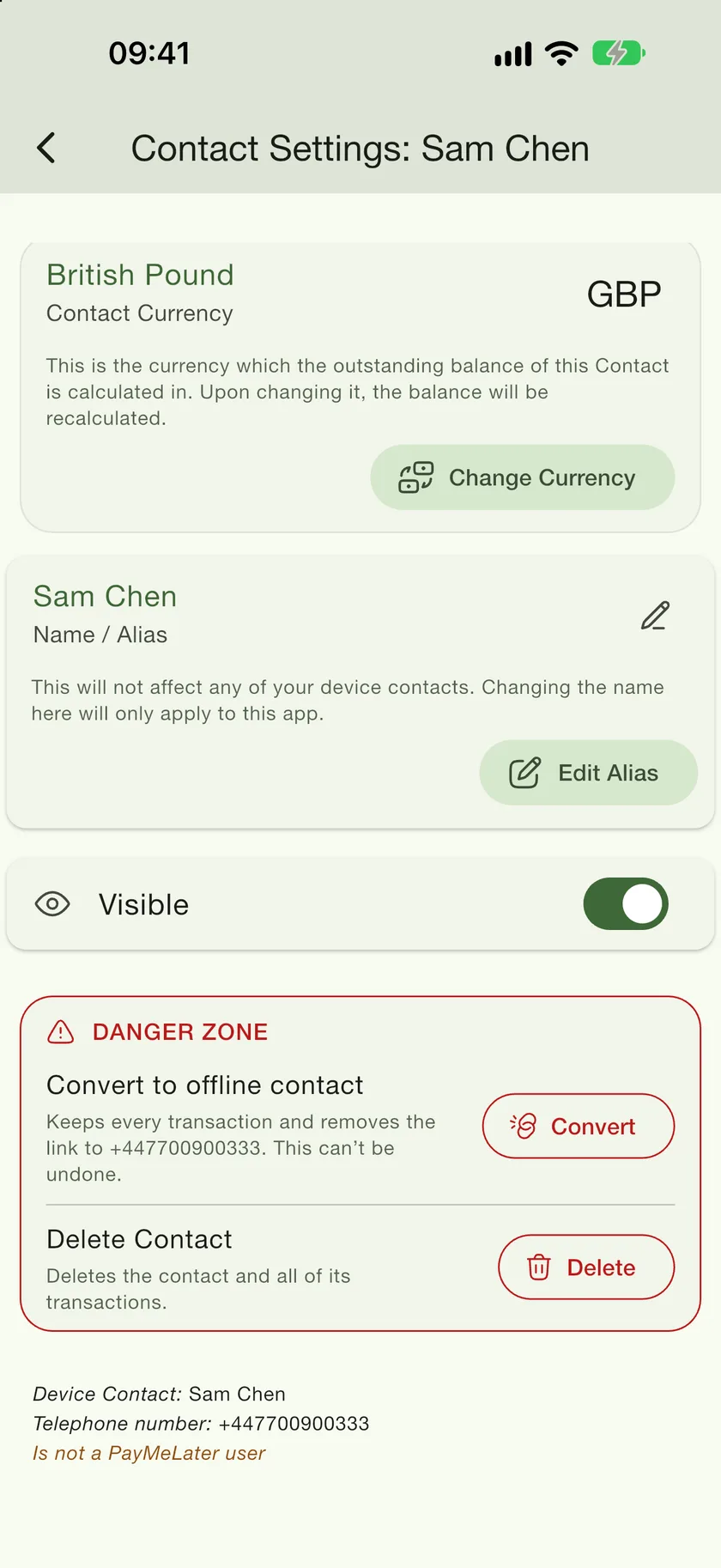
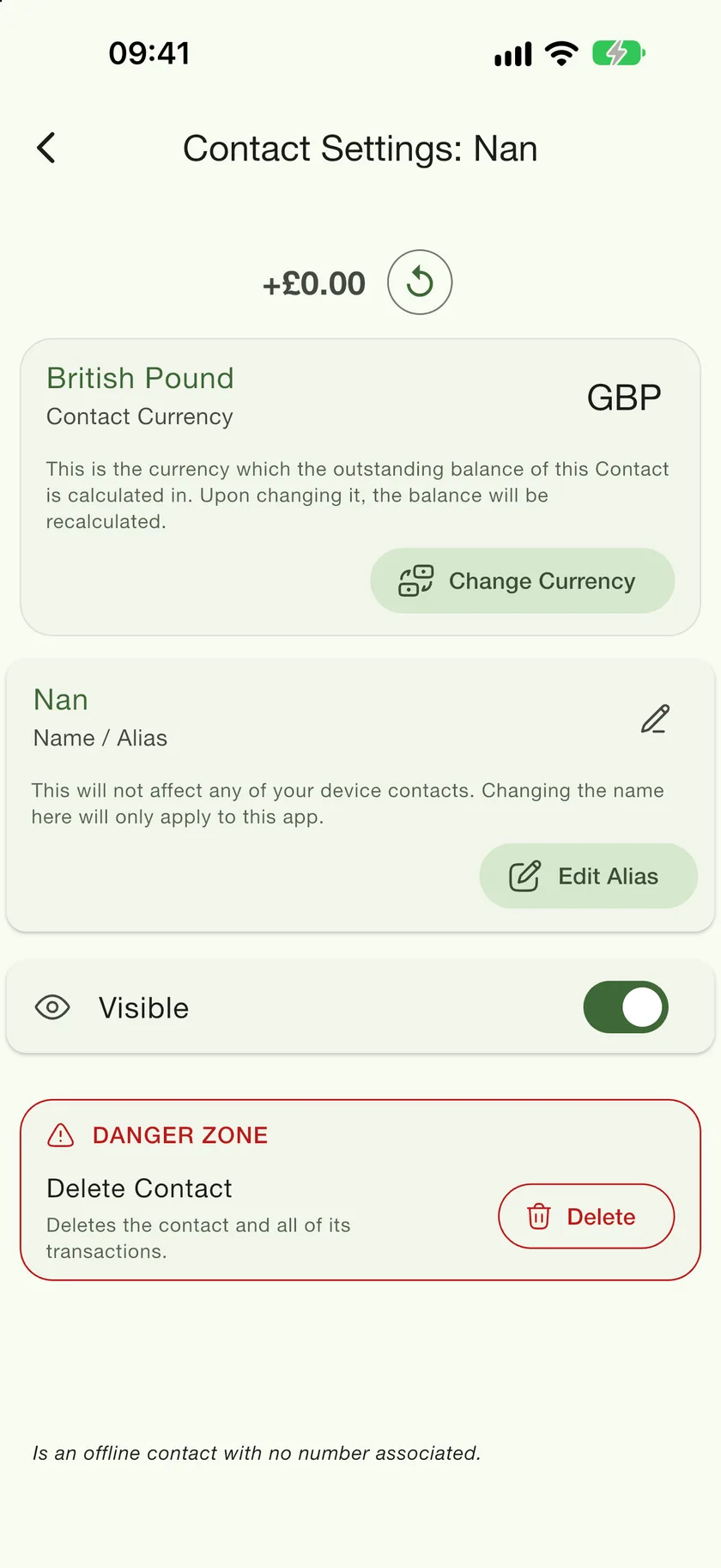
The footer 1 is the place to look whenever you are unsure why a friend cannot see your ledger: it shows the number PayMeLater is waiting for. The danger zone 2 is where a linked contact can be converted to offline, covered below.
Adding a contact
- 1
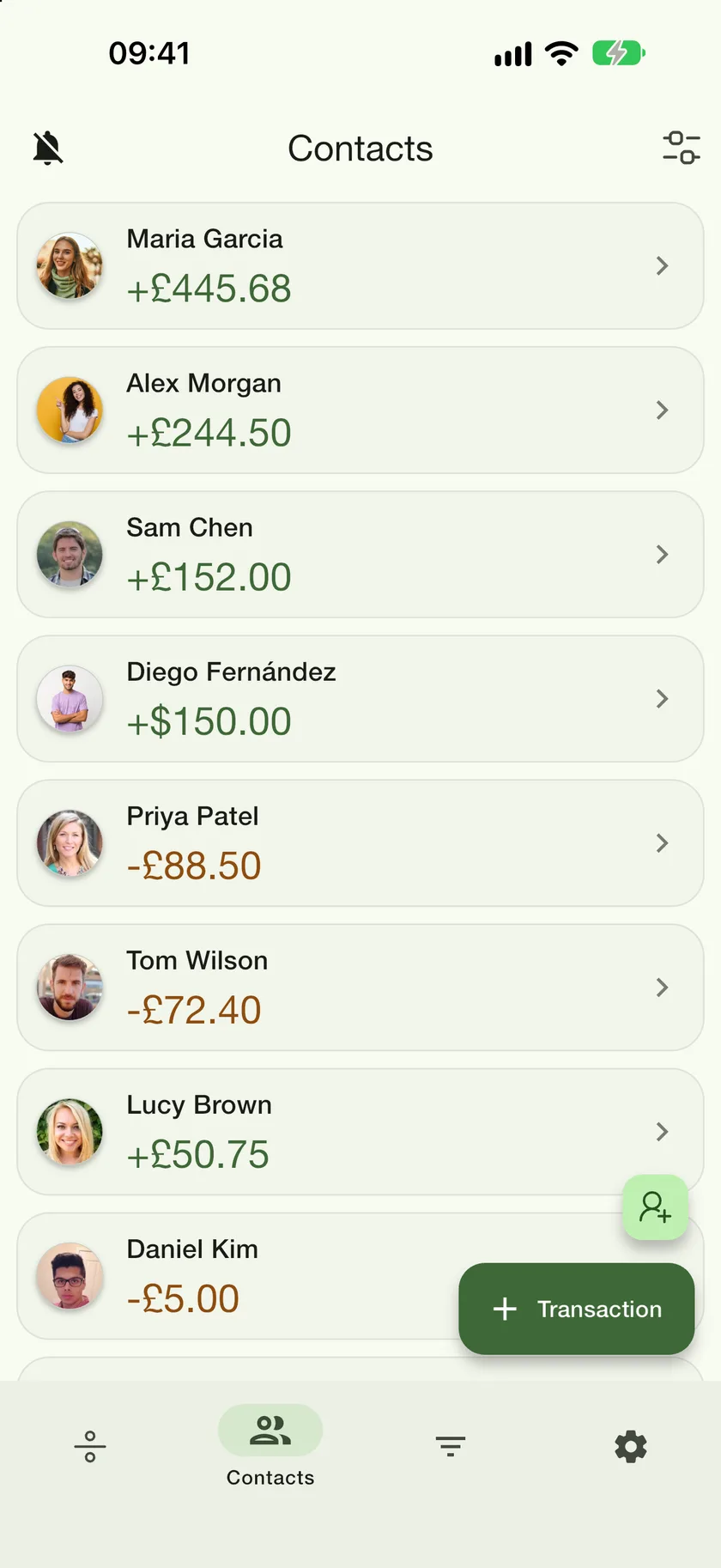
Open the Contacts tab
It is the second icon in the bottom bar and the screen the app opens on.
- 2
Tap the add-person button
The small green button above the Transaction button opens the new-contact screen.
- 3
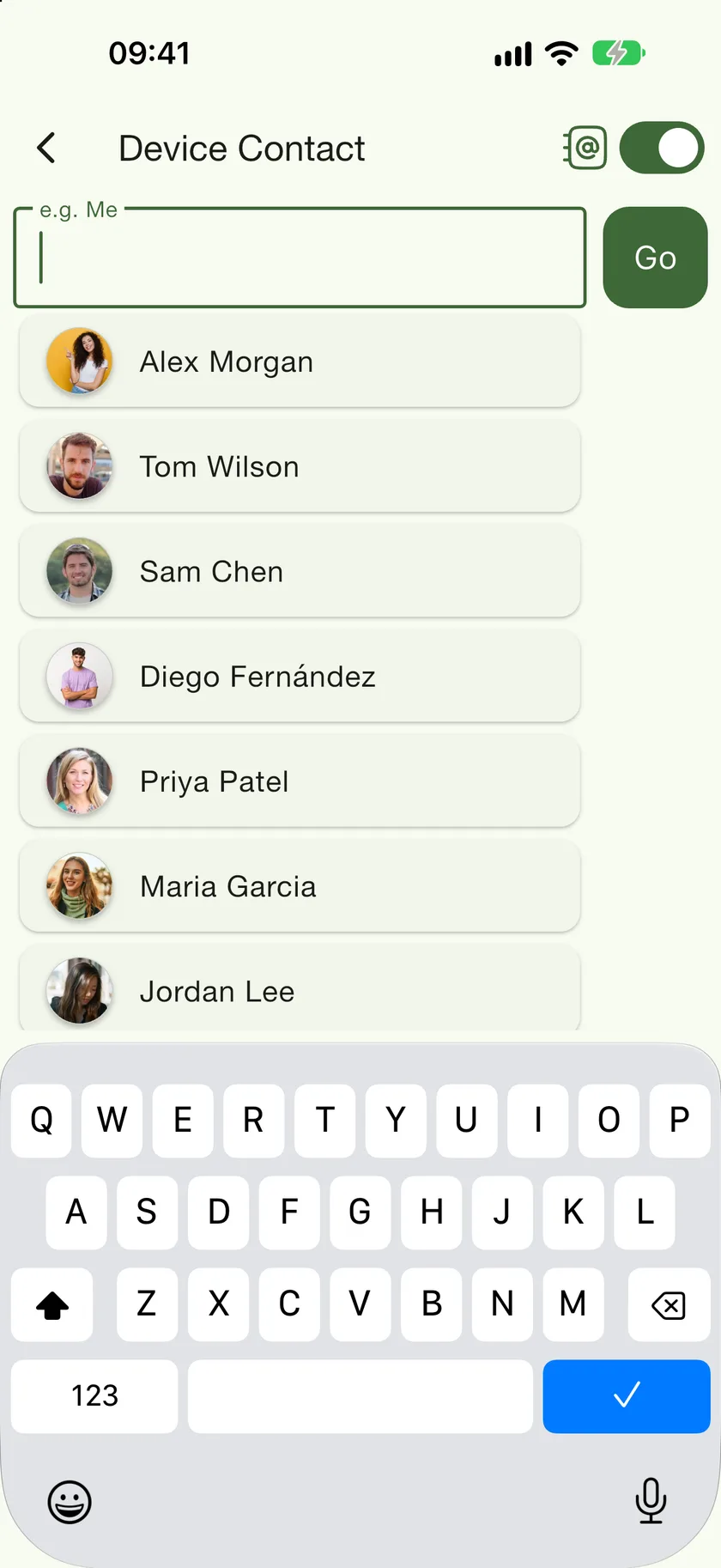
Choose linked or offline with the switch
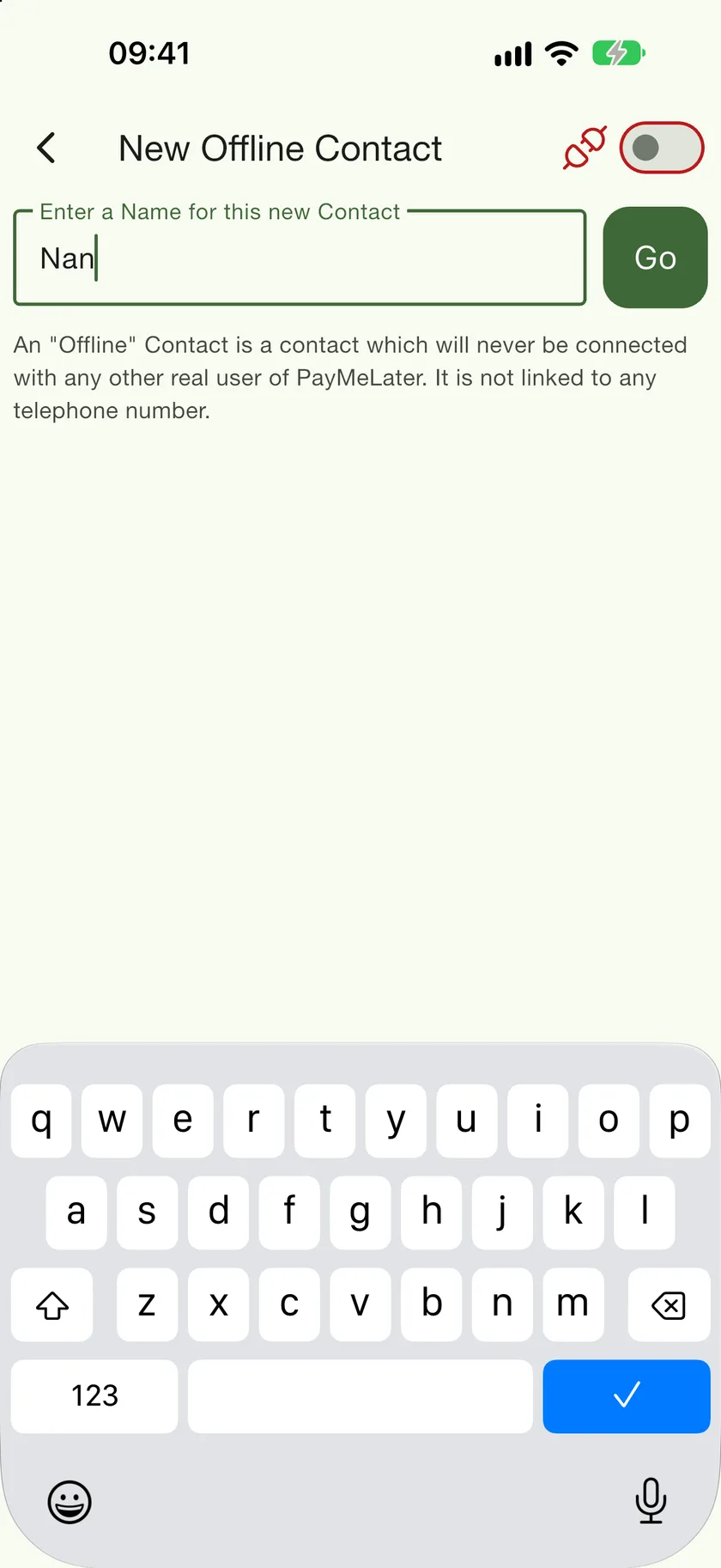
With Device Contact switched on, pick anyone from your address book to create a linked contact. Switch it off and the screen becomes New Offline Contact: type a name and tap Go.
Converting a linked contact to offline
Linked someone who will never join? Open Contact Settings, scroll to the Danger zone and tap Convert. Every transaction and the balance stay exactly as they are; only the link to the phone number is removed. The number is added to the contact's name so you still know who it was, and you can rename it in the confirmation before converting.
Which should I pick?
- Linked, for anyone who might install the app one day. Nothing is lost if they never do.
- Offline, for businesses, one-off people, and when you want the record for your eyes only.
- Anonymous mode only supports offline contacts. Sign in with your number to link people.